
Availability vs Workload
The headline supply-and-demand chart: total Availability (a line) against total project workload (a filled area), in FTE, over time.
The headline supply-and-demand chart: total Availability (a line) against total project workload (a filled area), in FTE, over time.
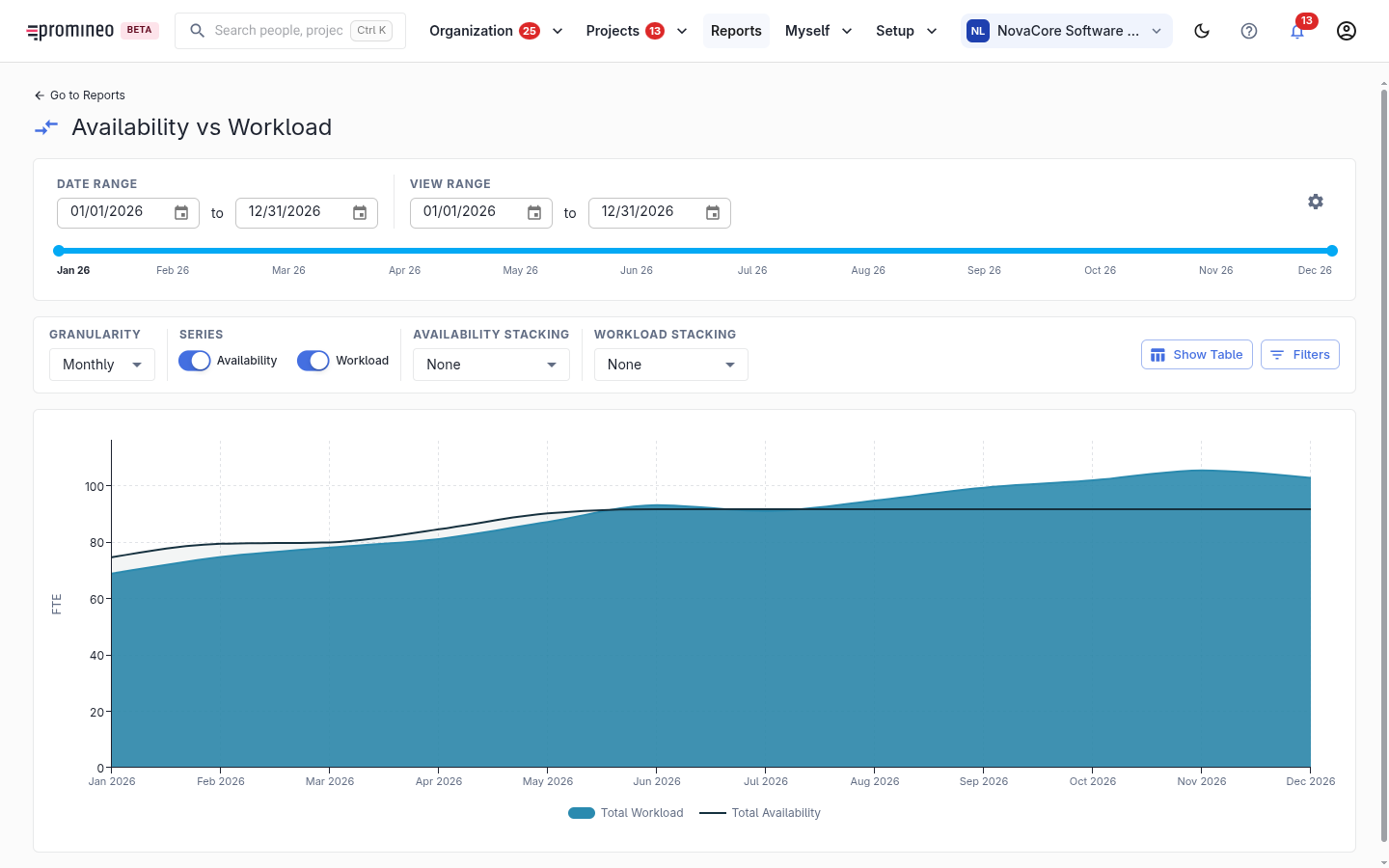
What you see
The chart plots Total Availability as a line and Total Workload as a stacked area, measured in FTE, across the selected months. Where the workload area rises above the availability line, demand is outstripping supply for that period; where it sits below, you have spare capacity.
Controls
- Date range and View range — the data window and the slice of it currently shown (drag the slider to zoom).
- Granularity — the bucket size, e.g. monthly.
- Series — toggle Availability and Workload on or off.
- Availability stacking — break Availability down by organization unit or person.
- Workload stacking — break Workload down by project, project role, project manager, project type or project status.
- Either stacking can also use one of your own custom fields.
- Max Series — how many bars to draw before the rest are grouped into a single Other series. Raise it when stacking by person or project, where there are often many; choose All to show every series (on a large data set that can be a lot of them).
- Show Table — the same figures as a table beneath the chart.
How to use it
Start with both series on and stacking off to see the overall gap. Then stack workload to see what is driving demand in the months where supply is tight. Project type or status tells you whether a shortfall comes from, say, external projects or internal overhead; project role tells you which skills are short; project or project manager tells you where the demand is concentrated. Stacking availability by person shows who the spare capacity actually belongs to.
High-cardinality breakdowns such as project or person can produce more series than the chart shows by default — raise Max Series, or set it to All, if you see an Other bar and need the detail behind it.