
Organization structure
Define your home organization — the hierarchy of departments, who manages each, and which Project Role each one provides — so project requests reach the right manager.
Define your home organization — the hierarchy of departments, who manages each, and which Project Role each one provides — so project requests reach the right manager.
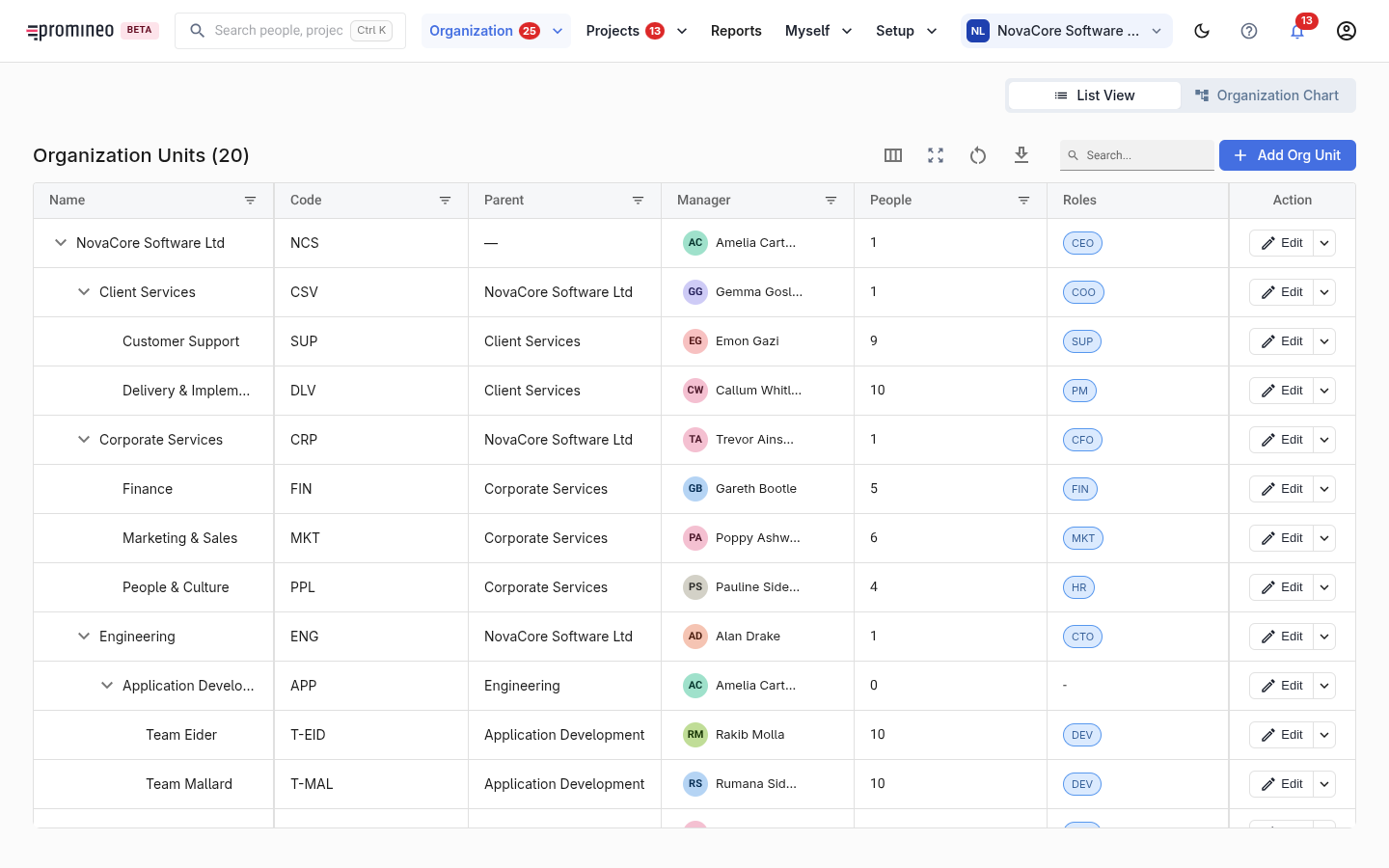
What you see
Each row is an organization unit (a department in your line organization, not a project structure). The grid shows its code, its parent unit, its manager, how many people belong to it, and the Project Role it supports. Use the List View / Organization Chart toggle to switch between the grid and a visual tree of the hierarchy. Add Org Unit creates a new department; Edit opens one to change it.
Roles per unit — why it matters
An organization unit isn't just a box on a chart. It carries three things Promineo needs so that demand can be routed correctly:
- Structure — where the unit sits in the hierarchy (its parent).
- People — who belongs to the unit.
- Project Role provided — which roles this unit can supply.
When a project asks for a Civil Engineer, Promineo uses "which units provide that role" to send the request to the right manager. A role can be provided by more than one unit; the project simply chooses which one to ask.
How to set it up
Build the hierarchy top-down: create the top unit first, then child units pointing at their parent. For each unit, set a manager (and, if used, a person who handles Time Off approvals), then attach the Project Role it provides. People are attached to units on the People screen.